Smart TV setup guide
Samsung (Tizen), LG (webOS) and other Smart TVs with an app store.
IPTV subscription & setup support
Set up your subscription on a Smart TV, Fire TV Stick, phone, tablet or computer in a few minutes. Clear step-by-step guides and a responsive support team help you from first login to first stream.

Why Pure IPTV Abo
Everything is built around a reliable experience, straightforward setup and help when you need it.
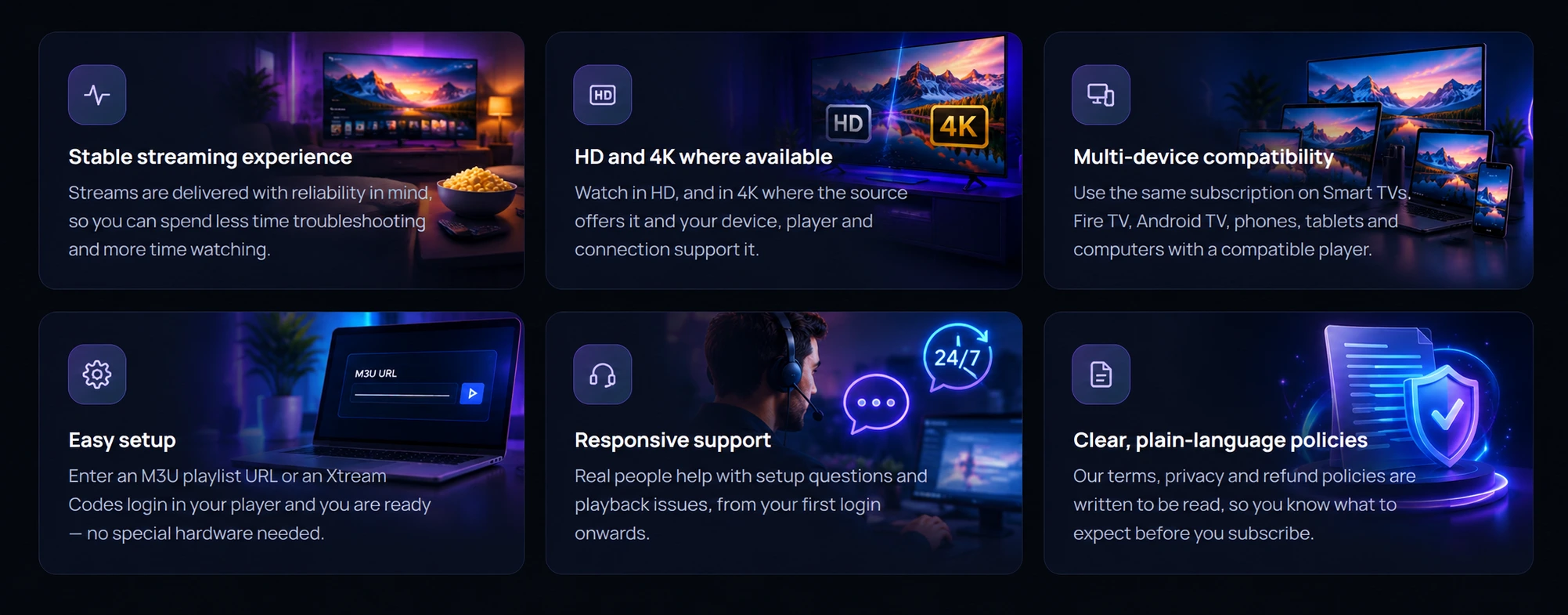
Streams are delivered with reliability in mind, so you can spend less time troubleshooting and more time watching.
Watch in HD, and in 4K where the source offers it and your device, player and connection support it.
Use the same subscription on Smart TVs, Fire TV, Android TV, phones, tablets and computers with a compatible player.
Enter an M3U playlist URL or an Xtream Codes login in your player and you are ready — no special hardware needed.
Real people help with setup questions and playback issues, from your first login onwards.
Our terms, privacy and refund policies are written to be read, so you know what to expect before you subscribe.
Compatible devices
Pure IPTV Abo works with any device that can run a compatible IPTV player app.
Samsung (Tizen), LG (webOS)
TVs, boxes, Chromecast with Google TV
Fire TV Stick, Fire TV Cube
Phones and tablets
iOS and iPadOS
Windows PC and Mac
Any device with a compatible player
How it works
Get in touch to set up your subscription, then install a compatible IPTV player on your device.
Add the M3U playlist URL or Xtream Codes login you received to your player.
Let the channel list load, pick a channel and enjoy. Support is there if you need a hand.
Pricing
Select how many devices you want to use, then pick the plan length that suits you.
Showing plans for 1 device
1 device
1 device
≈ $11.67 per month
1 device
≈ $9.17 per month
1 device
≈ $6.25 per month
Not sure which plan fits? Ask our support team or check the refund & cancellation policy.
Setup guides
Pick your device and follow the guide — each one explains exactly where to find the right settings.
Samsung (Tizen), LG (webOS) and other Smart TVs with an app store.
Android TV and Google TV televisions, boxes and streaming devices.
Amazon Fire TV Stick, Fire TV Cube and Fire TV smart TVs.
Android smartphones and tablets from any manufacturer.
iPhone and iPad with a compatible player from the App Store.
Windows and macOS computers using VLC or a dedicated IPTV app.
FAQ
Quick answers about Pure IPTV Abo, setup and support.
Pure IPTV Abo is an IPTV subscription service. After you sign up, you receive personal access details that you enter into a compatible IPTV player app on your TV, streaming stick, phone, tablet or computer. Our setup guides and support team help you get everything running.
Setup takes three steps: install a compatible IPTV player on your device, enter the access details you received (an M3U playlist URL or an Xtream Codes login), and wait for the channel list to load. Our device guides walk you through each step for Smart TV, Fire TV Stick, Android TV, Android, iPhone, iPad and PC.
Pure IPTV Abo works on devices that can run a compatible IPTV player, including Samsung and LG Smart TVs, Android TV and Google TV devices, Amazon Fire TV and Fire TV Stick, Android phones and tablets, iPhone and iPad, and Windows or macOS computers. If you are unsure about your device, contact support before you subscribe.
Open your player and look for an option such as Add playlist, Add user or Login. Choose M3U URL if you received a playlist link, or Xtream Codes if you received a server URL, username and password. Enter the details exactly as provided, without extra spaces, then save and let the player load your channel list.
Start with the basics: restart the player app, restart your device and router, and check that your internet connection is stable. A wired Ethernet connection usually helps. If one channel fails but others work, try again later. If the problem continues, contact support with your device, player app and a short description of what you see.
Use the contact page on this website to reach our support team. To help us solve your issue quickly, include your device model, the player app you use, the time the problem happened and any error message you see.
Blog & guides
Practical articles on players, login formats and getting the best picture quality.
Android TV and Google TV offer the widest choice of player apps on a TV. Here is how to set them up and keep them running well.
A Fire TV Stick turns almost any TV into a streaming device. This guide covers setup, key settings and habits that keep it running smoothly.
Picture quality depends on the stream, your connection, your device and your TV's settings. Here is how to get the most from each.